
Posts that people share get 2.5X more involvement than regular posts.
This powerful number shows why Instagram users want to know who shares their content. The platform makes us curious about who interacts with our posts. Instagram doesn’t make this information easily available. Privacy policies prevent users from seeing exactly who shared their posts.
Business and Creator accounts have some options. These accounts can use Instagram Insights and View Story Reshares to track their content’s sharing numbers. The View Story Shares feature lets you see public shares of your posts and reels to stories. You won’t see shares to private stories.
Your insights section shows a paper airplane icon. This icon displays the total ‘Shares’ – both Story shares and Direct Message shares combined. Shares matter more than likes. They show how your content strikes a chord with your audience, while likes just show basic acknowledgment.
This piece explains ways to track who shares your Instagram posts. You’ll learn about tracking options for iPhone and Android apps, and how Instagram’s analytics can boost your content strategy.
Can You Really See Who Shared Your Instagram Post?
Instagram users often wonder if they can find out who shares their content when they see their engagement numbers going up.
What Instagram allows and restricts
Instagram’s design puts user privacy first, which limits what you can see about shared posts. Business and Creator accounts get up-to-the-minute data analysis, but Instagram won’t let users see which profiles share their content.
The rules about who sees what are clear. Private accounts let only approved followers see posts. Public accounts let anyone on Instagram see the posts. This gives you more reach but doesn’t tell you who’s sharing.
Business and Creator accounts can see how many shares a post gets. Yet these accounts can’t identify who shared the content. Instagram built this limit to protect privacy while giving you useful data analysis.
Why you can’t see shares via DMs
Instagram’s direct message system has strict privacy rules. The platform keeps DM shares private when someone sends your post to friends. Instagram treats DM shares as private chats between users.
DM shares stay hidden from content creators, unlike comments or likes that appear under posts. This protects user privacy and stops creators from reaching out to people who privately shared their content.
This privacy wall applies to all account types. Instagram keeps DM activity private no matter what kind of account you have. Users can share content privately without creators knowing who they are.
What counts as a ‘share’ in Insights
The share count in Instagram Insights includes several types of sharing:
- Story Reshares: Your post added to someone’s Story
- DM Shares: Your post sent through direct messages
- External Shares: Your post shared outside Instagram
You need a Business or Creator account to see share metrics. Here’s how to check your insights:
- Open your profile
- Select your post
- Tap “View Insights” below it
- Find the “Shares” metric in the data
The total shows all shares together without showing who shared or how they did it. This number helps you learn about which posts appeal to your audience.
Posts with lots of shares usually mean your content connects well with viewers—they find it worth sharing. You can use this to compare posts and find what works best, even with privacy limits.
You can’t see exactly who shared your posts, but tracking these patterns helps you understand your content’s success and your audience’s priorities.
How to Switch to a Business or Creator Account
Image Source: Birdeye
You need a professional account to track who shared your Instagram content. The first vital step is switching from a personal to a business or creator account. This gives you access to Instagram’s analytics tools.
Steps to switch on iPhone and Android
The process to upgrade your account works the same way on iOS and Android devices:
- Open the Instagram app and tap your profile picture in the bottom right corner to access your profile
- Tap the Menu icon (three horizontal lines) in the top right corner
- Select Settings and privacy (some devices might show Settings first)
- Look for one of these options:
- Account type and tools (personal accounts)
- Creator tools and controls (creator accounts)
- Business tools and controls (business accounts)
- Tap Switch account type or Switch to professional account
- Pick either Business or Creator account type
- Choose a category that matches your content
- Link your Facebook Page if asked (business accounts need this)
- Check your contact information options
- Tap Done to finish
Desktop users can click More in the sidebar, select Settings, and look for Professional account or Switch to professional account options.
What changes after switching
Your account transforms right after going professional. You get Instagram Insights – a dashboard that shows vital stats like how many people shared your posts. The total number of shares appears here, but you won’t see who exactly shared your content.
Your profile looks a bit different too. Business accounts show contact buttons and category labels that you can hide if you want. Creator accounts get a professional dashboard with details about making money.
Professional accounts let you schedule posts through other apps – something personal accounts can’t do.
Your followers won’t notice big changes to your profile. The only visible difference is the contact info and category details under your bio.
Privacy implications of switching
Switching to a professional account brings some privacy changes you should know about.
Professional accounts must remain public. Anyone can see your content without approval. This helps reach more people but limits control over who views your posts.
Instagram and Meta collect more data about your account and followers when you go professional. This powers your insights but means they track more of what you do.
You can always switch back to a personal account if privacy becomes a concern. You’ll lose access to professional tools like Meta Business Suite and Meta Ads Manager. Instagram keeps your insights for 90 days after switching back. To see this data again, you’ll need to become professional once more.
Your follower count, posts, and content stay exactly the same whatever account type you pick. This makes it safe to try professional features without risking your Instagram presence.
Using Instagram Insights to Track Shares
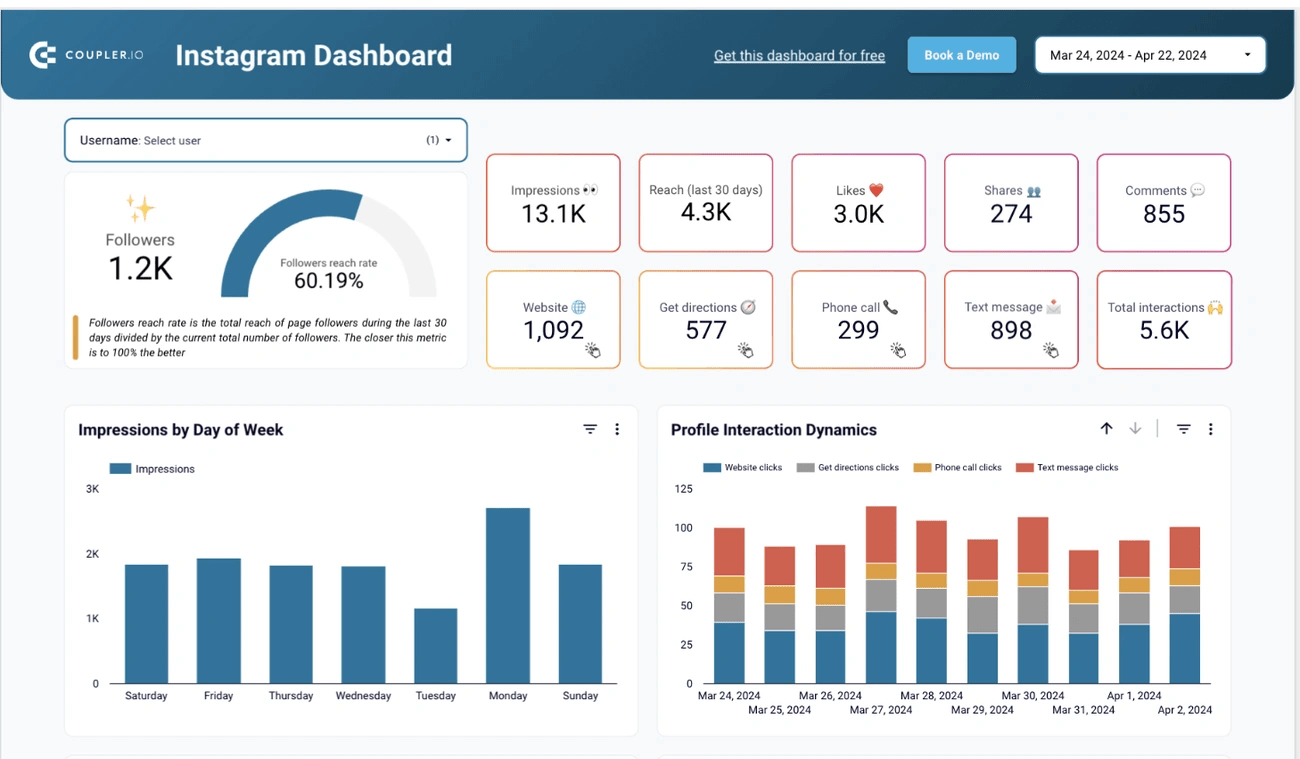
Image Source: Coupler.io Blog
Instagram’s analytics tools help you learn about your content performance, particularly post shares. A professional account gives you access to strong metrics that show how your content moves through the platform.
How to access Insights on posts and reels
Business or Creator accounts make it easy to check insights in several ways:
For Posts:
- Go to your Instagram profile
- Tap on the post you want to analyze
- Look for “View Insights” below the post image
- Tap to see the full analytics panel
For Reels:
- Go to the Reels tab on your profile
- Pick the reel you want to check
- Click “View insights”
- Look at the detailed metrics panel
You can also see all insights from your profile:
- Tap the menu icon (three horizontal lines) in the top-right corner
- Select “Insights” from the menu options
- See an overview of your account performance
This analytics dashboard shows detailed data about your content’s reach and engagement based on content type and time period.
Understanding the ‘Shares’ metric
The ‘Shares’ metric shows how many times users have shared your content, though it doesn’t show specific accounts. This number includes different types of shares:
- Story Reshares: Users adding your post to their Instagram Story
- DM Shares: Posts sent through direct messages
- External Shares: Content shared outside Instagram
The paper airplane icon in your insights panel shows the share count. High share counts often mean your content provides value or creates emotional connections with viewers.
Note that Instagram puts user privacy first, which limits what you can see about shared posts. Business accounts can only see combined numbers, not individual profiles that shared content.
How to see who shared and saved your Instagram post
Instagram’s privacy focus still leaves some ways to learn about who shares your content:
The View Story Reshares feature best shows who’s spreading your content. Here’s how to check:
- Open your target post
- Tap the three dots in the top-right corner
- Select “View Story Reshares”
This shows public profiles that shared your post to their Stories in the last 24 hours. You’ll only see reshares from users you follow if they have private accounts.
Instagram insights display total saves but not who saved your content. The bookmark icon shows this metric in your insights panel.
Checking mentions and direct messages might give you hints about who shares your posts. Users sometimes tag creators or send messages when sharing content.
Private Instagram posts have limited sharing options. These posts can only reach your approved followers, which makes tracking shares more difficult.
While Instagram doesn’t show everyone who shares your content, these metrics help you improve your content strategy and identify posts that people love to share.
How to Use the ‘View Story Reshares’ Feature
Instagram’s “View Story Reshares” feature lets you see who’s sharing your content publicly. This tool goes beyond simple share counts and shows the usernames of accounts that have shared your posts.
Where to find the option
The View Story Reshares option is tucked away in Instagram’s interface. Here’s how to find it:
- Open Instagram and head to your profile
- Pick the post you want to check for reshares
- Tap the three dots (•••) in the top right corner of your post
- Look for the “View Story Reshares” option in the menu
The option shows up only when someone has shared your post to their Story in the last 24 hours. You won’t see it if no one has shared your content or if those Stories have expired.
Checking Reel reshares works the same way – open the Reel, tap the three dots, and look for “View Story Reshares” if it’s available.
Limitations: 24-hour window and public accounts only
The View Story Reshares feature has some important restrictions you should know about:
The feature works in a strict 24-hour timeframe. You’ll only see reshares while Stories are active. The reshare vanishes from your list once a Story expires or someone deletes it. You might want to check often if tracking reshares matters to you.
The feature shows reshares from public accounts or private accounts you follow. You won’t see reshares from private accounts you don’t follow, whatever your account type.
Instagram doesn’t officially acknowledge this feature, which explains why many people don’t know it exists. The feature sometimes seems to work differently on different accounts.
How to see who shared your Instagram post on iPhone
iPhone users can check View Story Reshares the same way. After tapping the three dots and selecting the option, you’ll find a “Current Public Reshares” section that shows all public profiles sharing your post.
Here are some important points to remember:
Without View Story Reshares, you’ll only know about shares when someone tags you in their Story. You’ll get a notification saying “@user mentioned you in their story”. Tap it to see their Story with your content.
Business and Creator accounts face the same privacy limits. Instagram protects user privacy by showing only public shares and keeping the timeframe short.
Note that DM shares stay private – there’s no way to see who shared your posts through Direct Messages. This keeps these interactions confidential.
Other Ways to Identify Who Shared Your Post
Instagram’s official analytics tools don’t tell the whole story. You can tap into several other ways to find out who shares your content. These methods help fill the gaps that Instagram’s limited share tracking leaves behind.
Checking mentions and tags
Tags and mentions give you the best clues about who shares your content. Your activity feed gets a notification when someone tags your username in their post or adds you to their caption. This creates an easy way to trace who’s sharing your stuff.
Here’s the quickest way to check these mentions:
- Hit the heart icon in the bottom navigation bar
- Head to the “You” tab to see all interactions
- Look for alerts about someone “mentioned you in their post”
You’ll also get a mention notification when someone uses a repost app that gives credit to original creators. These apps tag the original content creator automatically, which makes tracking shares much easier.
Using hashtags to trace shares
Hashtags offer another great way to find reshared content. You can track these shares through hashtag searches when people use your brand’s unique hashtag.
The best hashtag strategy includes:
- Your username as a branded hashtag
- Special campaign hashtags to track specific content
- Regular searches of these hashtags to spot reshares
BrandMentions and similar hashtag tools can track usage across platforms. These tools give you live analytics on reach, impressions, and sentiment for each tag. They scan the whole internet for hashtag mentions and help you find content you might miss otherwise.
How to see who shared your private Instagram post
Private accounts make tracking shares much harder. Your content can only reach approved followers, which naturally limits how far it can spread.
Instagram’s privacy rules mean shared private posts only reach people who already follow you. This limits both your content’s reach and your ability to see who shares it.
Private accounts can still track shares by:
- Watching DM requests for messages about shared content
- Keeping an eye on follower activity in your feed
- Switching to public temporarily during campaigns if tracking matters most
Private account owners should know that privacy comes with limits on share tracking. Each user needs to balance content protection against analytics visibility based on what matters most to them.
Why Post Shares Matter for Growth

Image Source: Sprout Social
Why Post Shares Matter for Growth
Post shares work as powerful currency in the social media world. No other interaction measure directly increases your content’s visibility across Instagram’s network.
How shares affect reach and engagement
Instagram’s algorithm uses shares as its main signal to rank content. Posts with high share counts are 50% more likely to find new audiences than those that only get likes or comments. This system preference makes sense because shared posts get a quality stamp of approval from users.
Small accounts with under 10K followers need just 100 post shares to boost their chances of appearing on the Explore page. Accounts between 10K-100K followers require about 500 combined shares and comments to reach beyond their current audience. Brands that focus on getting more shares see engagement rise up to 35% compared to posts with many likes but fewer shares.
Using share data to improve content strategy
The first step to boost shareability is analyzing which posts get shared most. Research shows posts that mix practical value with emotional appeal get twice as many shares as regular posts. Instagram stories see over 500 million shares daily, and about 70% of users share posts through DM or story.
To get more shares:
- Create content that triggers emotions (inspirational quotes, relatable memes)
- Write captions with clear prompts (“Tag someone who needs this”)
- Use formats like carousels and infographics that people share more often
- Time your posts during peak engagement hours based on your analytics
How to see who shared your Instagram post app (indirect tools)
Instagram does not offer complete third-party app integration to track individual sharers. In spite of that, some analytics platforms give useful data without showing specific users. Tools like Sprout help analyze post patterns and link your strategy to results. These apps offer different metrics that hint at sharing activity while respecting Instagram’s privacy rules.
Conclusion
Tracking who shares your Instagram content remains a challenge because of the platform’s focus on privacy. The methods in this piece offer practical ways to monitor and analyze how your content moves across Instagram. Business and Creator accounts get clear advantages through Instagram Insights, especially when you have access to the View Story Reshares feature.
Shares are your content’s strongest engagement signal. High share counts show that you should create more similar content. Your analytics’ paper airplane icon deserves extra focus as it measures real engagement beyond basic likes.
To track shares more effectively, you can use unique hashtags and check mentions regularly. This approach helps identify people who amplify your content when Instagram’s built-in tools aren’t enough.
Instagram’s design balances creator analytics with user privacy. Content creators need to work within these limits and make the best use of available tools while respecting Instagram’s privacy features that users love.
Share counts should guide your content strategy. Posts that trigger emotions, offer practical value, or inspire action get more shares. You can improve your reach by studying which content types and topics generate the most shares.
Your Instagram success depends on creating content worth sharing that turns followers into promoters. While you can’t track every person who shares your posts, following overall trends and patterns gives you valuable insights to grow your Instagram presence.
FAQs
1. Can I see exactly who shared my Instagram post?
Unfortunately, Instagram doesn’t allow users to see exactly who shared their posts. However, business and creator accounts can view the total number of shares through Instagram Insights, and sometimes see public story reshares within a 24-hour window.
2. How do I access share metrics for my Instagram posts?
To view share metrics, switch to a business or creator account. Then, go to your profile, select a post, and tap “View Insights” below it. Look for the paper airplane icon, which represents the total number of shares.
3. What’s the difference between story reshares and other types of shares?
Story reshares are when someone adds your post to their Instagram Story. Other types include direct message (DM) shares and external shares. Instagram Insights combines all these into a single “Shares” metric, but you can only see public story reshares individually.
4. Does sharing impact my post’s reach on Instagram?
Yes, shares significantly impact reach. Posts with high share counts are more likely to be shown to new audiences and may even appear on the Explore page. Shares are considered a strong signal of content quality by Instagram’s algorithm.
5. How can I encourage more people to share my Instagram posts?
To increase shares, create emotionally resonant or practically valuable content, use clear calls-to-action in your captions, utilize engaging formats like carousels, and post during peak engagement times. Analyzing which of your posts get shared most can help refine your content strategy.